
how to enable dolby atmos for gaming usually comes down to three things: your headset connection type, the device you play on, and whether the Dolby Access app can “see” your audio output.
If any one of those is off, you get the classic symptoms: Atmos won’t toggle on, spatial audio sounds flat, or you hear weird phasey audio that makes footsteps harder, not easier.
This guide focuses on practical setup for Windows PC and Xbox, plus quick checks to confirm Atmos is truly active, not just “selected.” I’ll also call out the common traps, like using the wrong USB mode on a wireless dongle, or leaving a game set to stereo output.
What you need before enabling Dolby Atmos
Dolby Atmos for gaming headsets is less about a specific brand and more about a working chain from game → OS/console → output device. Get these basics right and the rest becomes simple.
- A supported platform: Windows 10/11 or Xbox consoles are the most straightforward.
- Dolby Access app (Windows/Xbox): typically required to enable and manage Dolby Atmos for Headphones.
- Headphones or headset: any decent stereo headset can work for Atmos for Headphones, but some headsets include a license or a dedicated mode.
- A clean output path: avoid double-processing from multiple surround apps at once.
According to Dolby Laboratories, Dolby Atmos for Headphones is designed to deliver spatial audio over stereo headphones using processing on the device.
Quick compatibility check (don’t skip this)
Before you spend time clicking toggles, use this checklist to figure out what situation you’re in. It helps you avoid “it’s on but it doesn’t sound like anything changed.”
- Platform: Windows PC, Xbox Series X|S / Xbox One, or something else (PS5/Switch behave differently).
- Connection: 3.5mm to controller/PC, USB wired, USB wireless dongle, or Bluetooth.
- Driver/software: vendor app installed (SteelSeries GG, Logitech G HUB, Razer Synapse, etc.) and any surround toggle enabled.
- Game audio mode: stereo, headphones, home theater, or Atmos/spatial option inside the game.
If you’re on Bluetooth, expect extra friction. Many Bluetooth profiles limit bandwidth/latency, and spatial processing can behave inconsistently depending on the stack. USB or 3.5mm tends to be easier.
How to enable Dolby Atmos on Windows 11/10 (step by step)
This is the most common path for how to enable dolby atmos for gaming on PC. The key is selecting the correct default playback device, then enabling Spatial audio for that exact device.
1) Install Dolby Access and confirm the output device
- Open Microsoft Store, install Dolby Access.
- Connect your headset (USB dongle or wired).
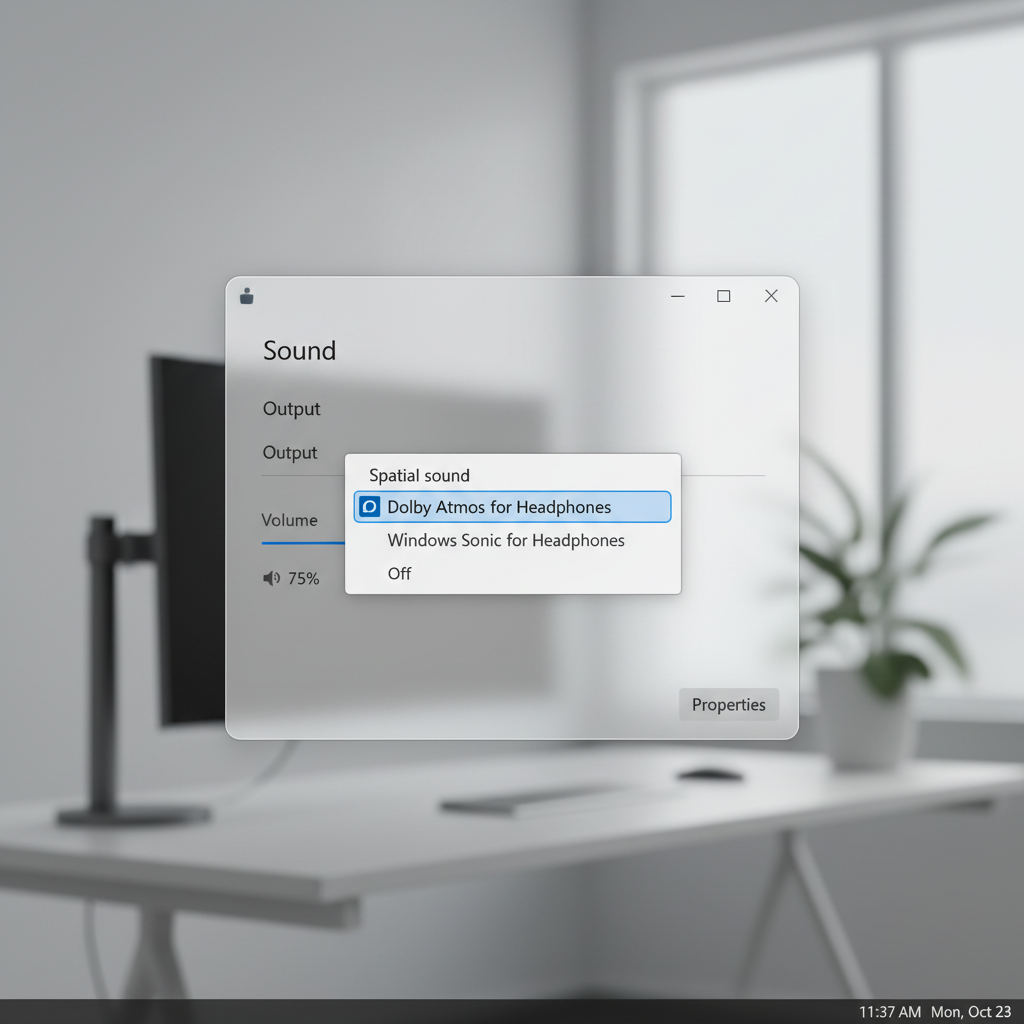
- Go to Settings → System → Sound, and set your headset as Default output.
2) Turn on Spatial audio for the right device
- In Sound, click your headset output device.
- Find Spatial audio.
- Select Dolby Atmos for Headphones.
3) Configure Dolby Access (optional but useful)
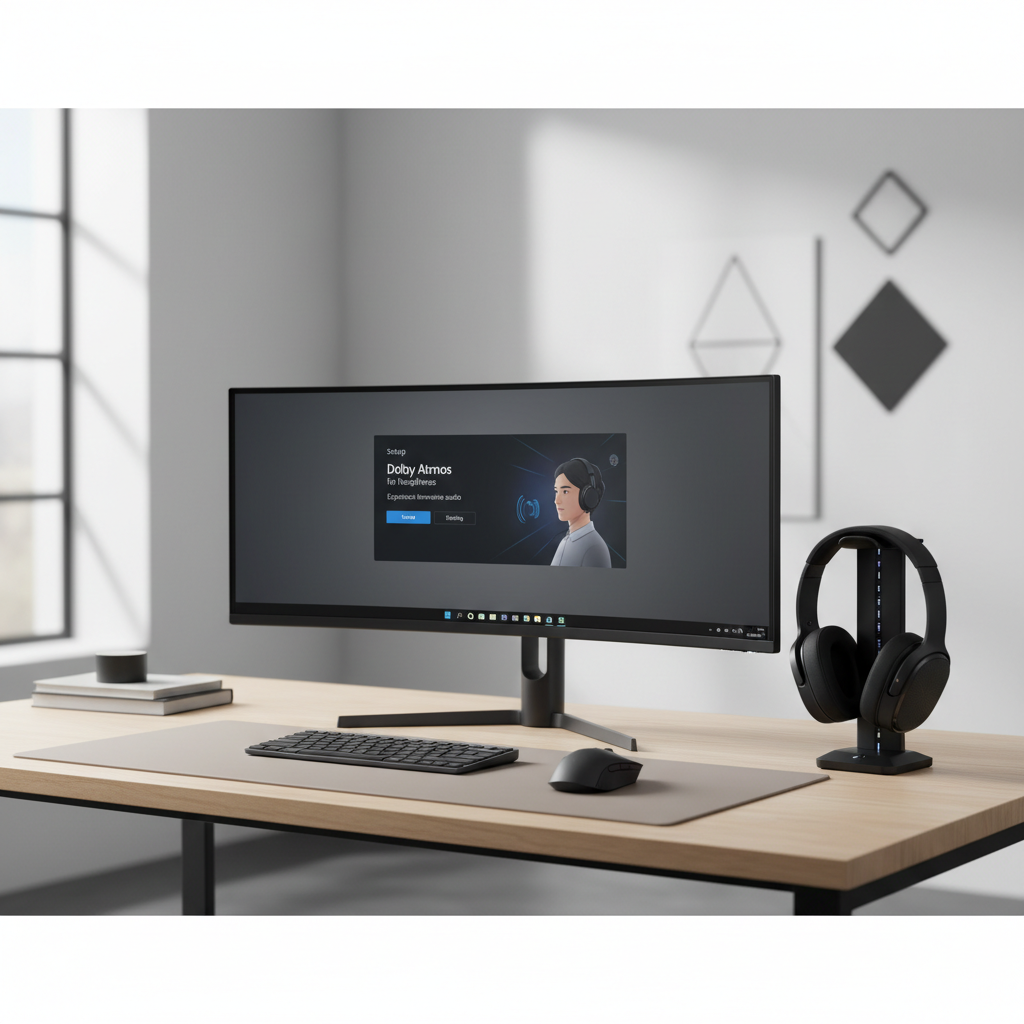
Open Dolby Access and look for a headphone setup page or a profile/EQ section. Many people skip this, then blame Atmos when the sound signature is just too bass-heavy.
- If you play competitive shooters, try a flatter EQ or a “Game/Performance” style preset.
- If dialog is buried, reduce low bass slightly and add a small lift in upper mids.
4) Verify it’s actually working
- Play an Atmos sample/demo inside Dolby Access if available.
- In-game, stand near a looping sound source and rotate slowly. You should perceive smoother direction changes, not just “louder on one side.”
If the toggle keeps snapping back to Off, it’s often a permissions/driver problem or another spatial app taking control.
How to enable Dolby Atmos on Xbox (Series X|S and Xbox One)
On Xbox, the logic is simpler: install Dolby Access, choose Atmos under headset format, and make sure your headset is connected in a way Xbox recognizes as “headset audio.”
- Install Dolby Access from the Xbox Store.
- Open Settings → General → Volume & audio output.
- Under Headset audio, set Headset format to Dolby Atmos for Headphones.
- If prompted, launch Dolby Access to complete setup or licensing.
One practical note: if you run audio through a TV first, then back out to headphones, you can end up in a format mismatch. Direct headset connection to controller or a supported wireless headset path is typically cleaner.
Common problems and fixes (the stuff that wastes time)
When people search how to enable dolby atmos for gaming, they’re often stuck in one of these patterns. Match the symptom, then apply the fix.
- Atmos option missing in Spatial audio: update Windows, update audio drivers, install Dolby Access, and confirm you’re editing the correct playback device (not “Monitor” or HDMI output).
- No sound after enabling: disable Exclusive Mode for the device, reboot, then re-enable Atmos. Also check if a vendor app switched the headset into a chat-only mode.
- Sounds “echoey” or smeared: you may be double-processing. Turn off DTS/7.1/THX/Windows Sonic in other apps and leave only one spatial solution enabled.
- Footsteps harder to hear: reduce bass boost, lower reverb-heavy in-game settings, and confirm the game is set to Headphones (not Home Theater).
- Works in demos but not in one game: that game might output stereo only, or it may need a specific setting like “3D audio” or “spatial audio” enabled.
According to Microsoft, Windows Sonic, Dolby Atmos, and DTS Headphone:X are different spatial sound formats, and you generally want to run only one at a time to avoid conflicts.
Settings that actually matter for competitive gaming
Atmos can help, but it can’t rescue messy gain staging or a wildly colored headset tune. These are the knobs that tend to move the needle.
In Windows / Xbox
- Disable extra enhancements if they add reverb or “virtual room” effects.
- Set a sane volume: too loud reduces your ability to separate layers.
- Use one spatial layer: Atmos on, everything else off.
In-game
- Headphones output mode as the default starting point.
- Dynamic range: “Low/Night” can help pull quiet cues forward, but sometimes crushes distance. Test per title.
- HRTF option: if the game has its own HRTF headphone spatialization, compare it against Atmos instead of stacking both.
At-a-glance setup table
If you just want the shortest path, this table covers the typical device and setting combos that work.
| Platform | Connection | Where to enable | Best quick check |
|---|---|---|---|
| Windows 11/10 | USB wired | Settings → Sound → Spatial audio | Dolby Access demo + rotate in-game |
| Windows 11/10 | USB wireless dongle | Same as above (ensure correct “Game” device) | Confirm default output isn’t “Chat” device |
| Xbox Series X|S | Controller 3.5mm | Settings → Volume & audio output | Headset format shows Dolby Atmos |
| Xbox Series X|S | Wireless headset | Same + Dolby Access app if prompted | In-game directional cues feel consistent |
Key takeaways and a practical “do this next” checklist
If you want a clean result fast, treat this as a small sequence, not random toggling.
- Pick one spatial solution and disable the rest.
- Set the correct default output device (watch for separate Game/Chat endpoints).
- Enable Dolby Atmos for Headphones in Spatial audio (Windows) or Headset format (Xbox).
- Confirm in a real game, then tune EQ lightly for clarity.
Once this is stable, how to enable dolby atmos for gaming stops being a recurring problem and becomes a one-time setup you only revisit after driver updates or hardware changes.
Conclusion
Dolby Atmos can be a real upgrade for positional cues when the audio chain stays clean, the right device is selected, and you avoid stacking multiple surround effects. Start with the platform steps, verify with a demo and a game test, then adjust EQ with a light touch.
If you’re still stuck after checking the default output and disabling other spatial tools, it’s usually a driver/device routing issue, at which point reinstalling the headset driver or resetting audio settings often saves more time than endless tweaking.
FAQ
How do I know Dolby Atmos is actually enabled on Windows?
Open Sound settings for your active output device and confirm Spatial audio shows Dolby Atmos for Headphones. Then validate with a Dolby Access demo or a simple in-game rotation test.
Why does Dolby Atmos sound worse for footsteps in some games?
Often it’s not Atmos itself, it’s a bass-heavy preset, double-processing from another surround app, or the game’s audio mix. Try a flatter EQ and make sure only one spatial solution runs.
Can I use Dolby Atmos with any gaming headset?
In many cases, yes, because Atmos for Headphones targets stereo headsets. That said, USB headsets with their own processing can conflict, so you may need to disable the headset’s built-in 7.1 mode.
Do I need Dolby Access if I already see Atmos in Spatial audio?
Usually Dolby Access handles setup, licensing, and profiles. Some systems expose the toggle, but the app still helps confirm activation and gives you a reliable test path.
What’s better for PC gaming: Windows Sonic or Dolby Atmos?
It depends on the game, your headset, and what you prefer. The practical rule is to pick one and test in the titles you actually play, because mixes vary a lot.
Why can’t I enable Atmos when using Bluetooth headphones?
Bluetooth can introduce profile limitations and latency, and some implementations don’t cooperate with spatial processing cleanly. If possible, switch to USB or a low-latency wireless dongle mode.
Should I enable the headset brand’s “surround” and Dolby Atmos together?
Most of the time, no. Stacking two virtual surround layers tends to smear imaging. If you want Atmos, leave the brand surround off and compare results.
If you’re trying to get Atmos working across multiple devices, or you want a more “set it and forget it” setup for competitive audio, it can help to standardize on one connection method and one spatial stack, then save a simple checklist for driver updates and new games.